true
false






Enter Zip Code
Apply
Please enter your zip code
Sorry, your entry cannot exceed 10 characters
Please enter minimum 5 numbers
Please enter a numeric value for this field

Quick Start
Jump right in
My Projects

{{project.projectName}}
Edited:{{project.updateDate}}
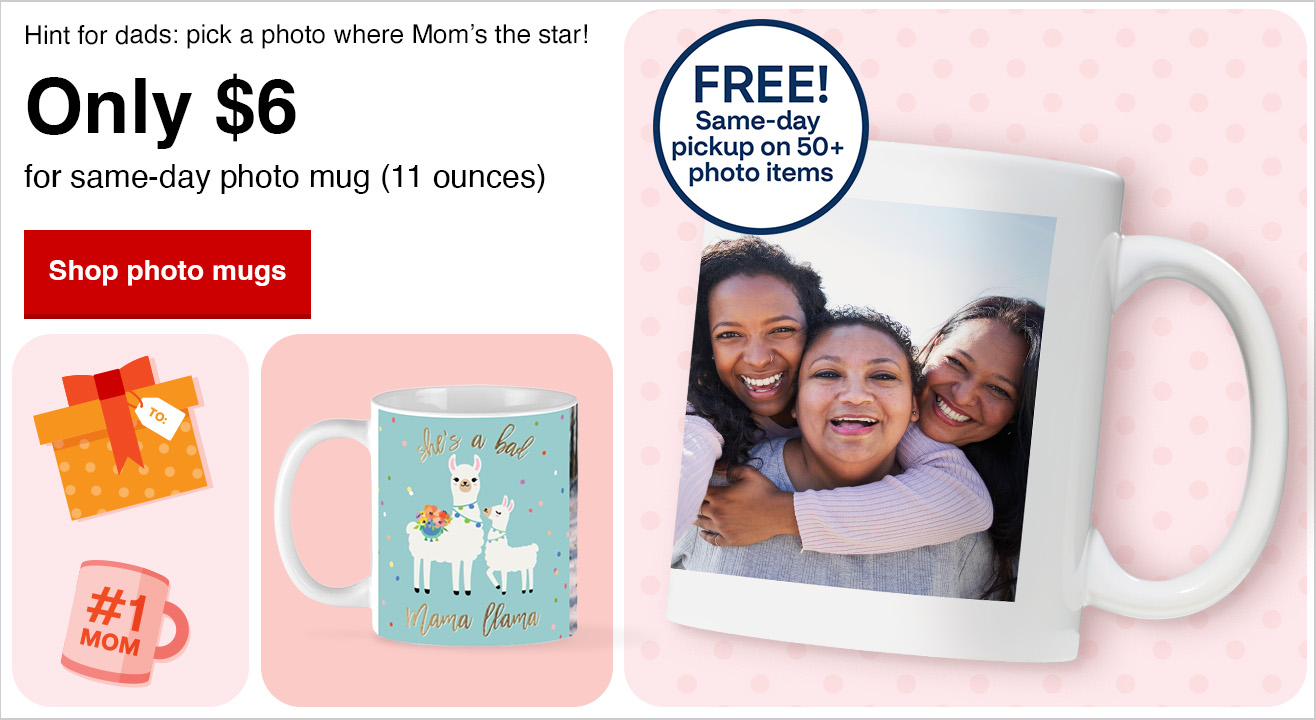

Create Photo Cards, Photo Books, Canvas Prints and Photo Gifts
55% off
Includes same day
Promo Code: OFF55
Shop now
40% off
Includes same day
Promo Code: 40PRINT
Shop now


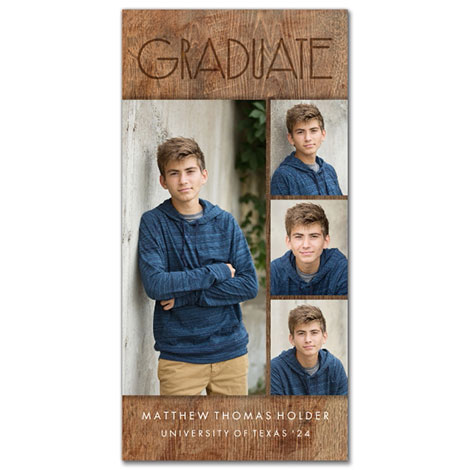
Celebrate with Cards...Holidays, Birthdays, and More!
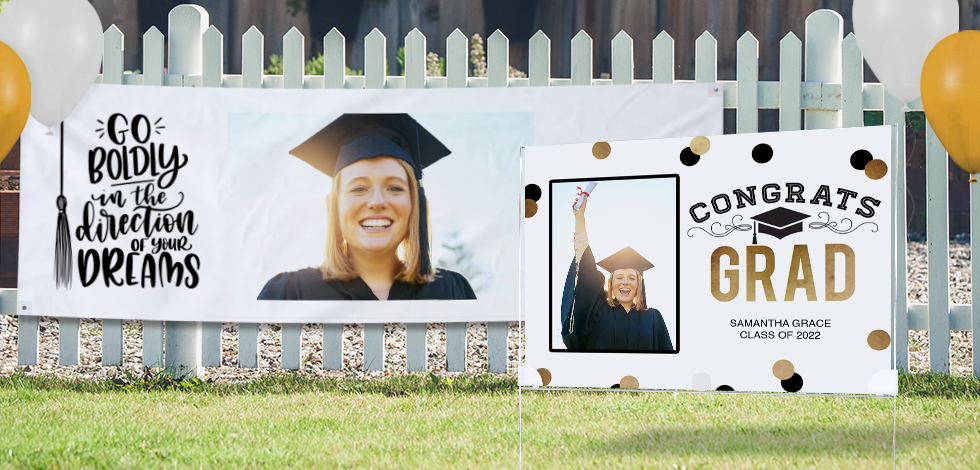
For occasions big and small
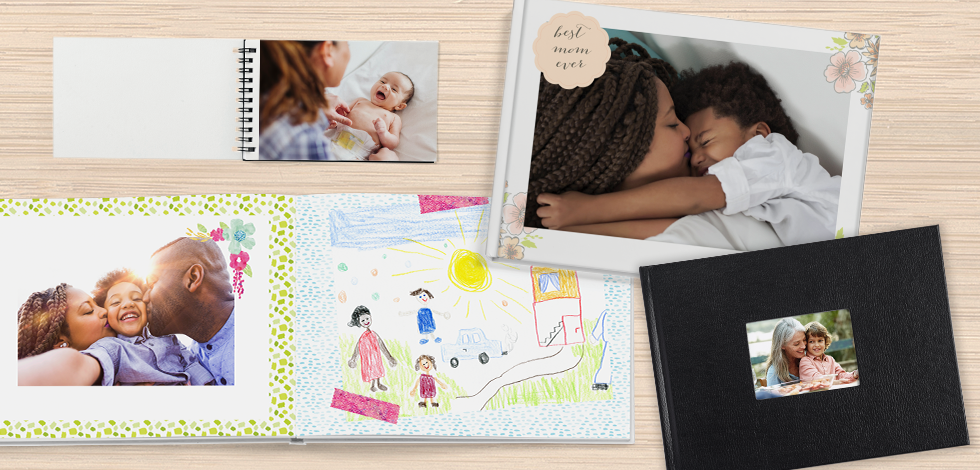
Collect your favorite moments
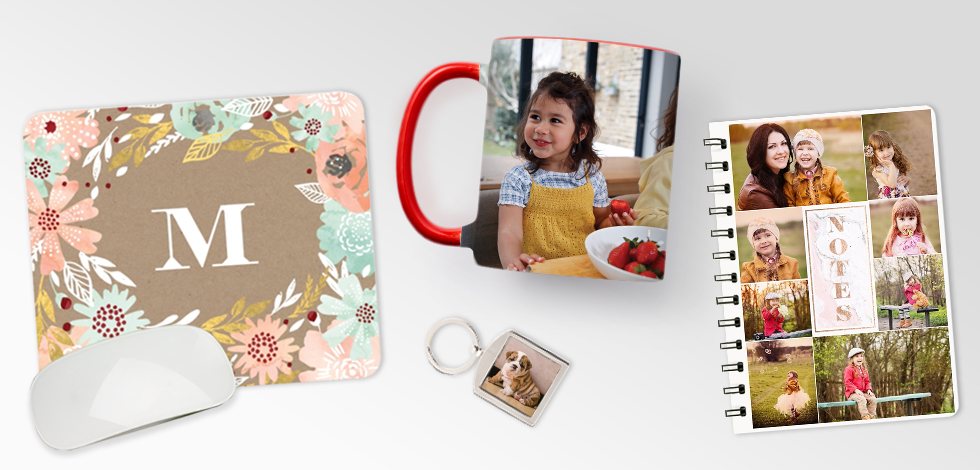
Find the right gift for the right moment
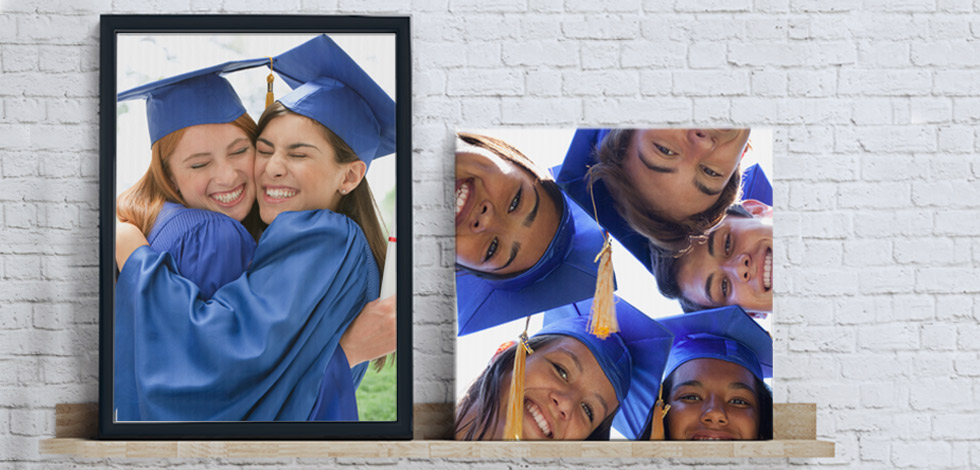
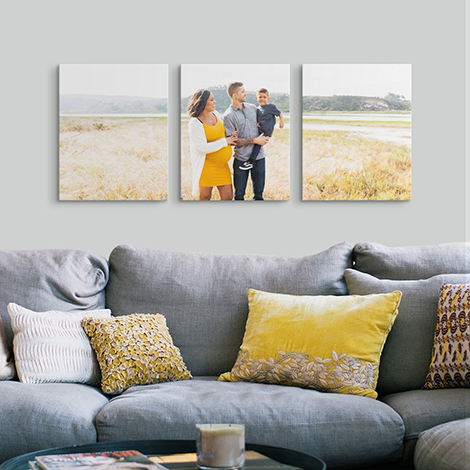
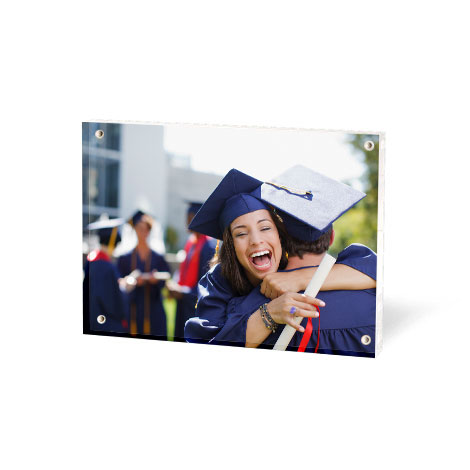
Hang your favorite memories

It’s never too late to share something special
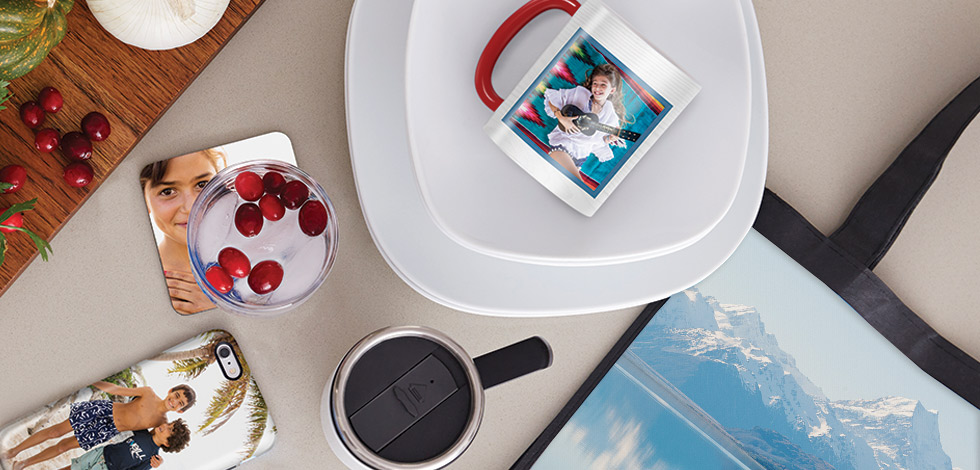
Create a personalized gift
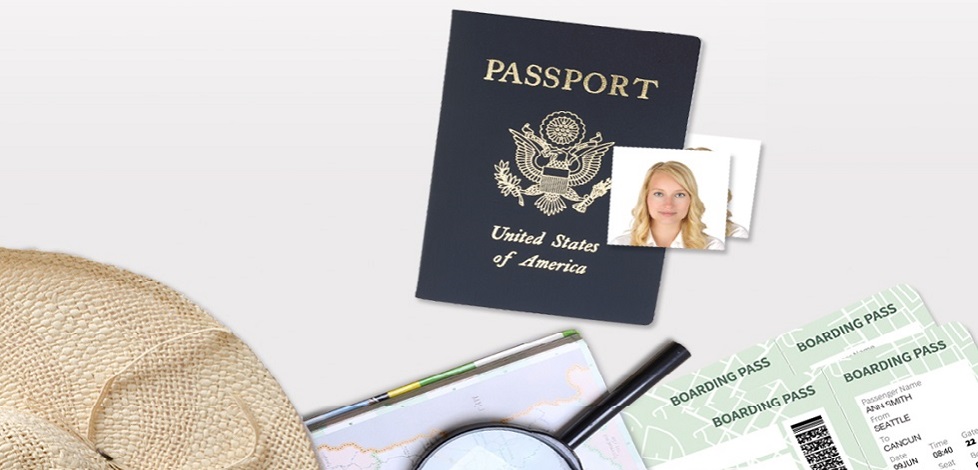
Quick, convenient and government compliant. Guaranteed.
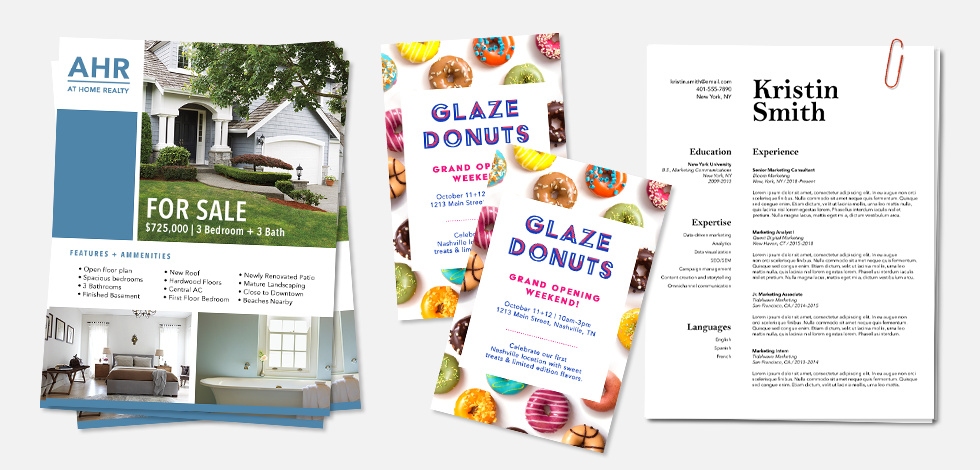
Grow your business with professional business printing
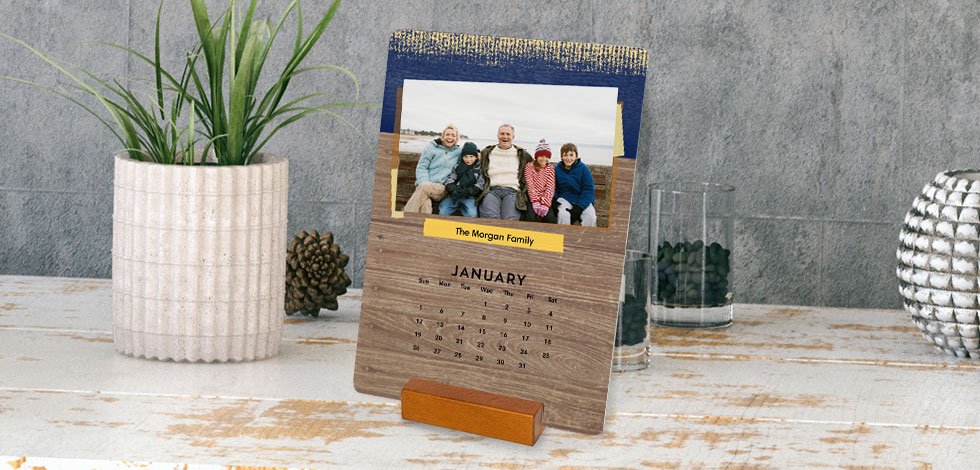
Plan your year
Photo
At CVS Photo, you can turn your photos into gifts and pieces of art that will be cherished for years to come. We offer a large variety of products that you can fully customize to your liking – whether that be with a picture of you and a loved one or a canvas with a quote that is meaningful to you. Hang up your custom photo art in your entryway for your visitors to enjoy or put a photo of your kids on your desk at work to remind you of why you work so hard. No matter how you want to enjoy your cherished moments – you can, with our high-quality photo products. Explore our CVS Photo site and let your creativity run free!
Photo Deals & Same-Day Pickup
On a weekly basis, we have a variety of sales and deals to make our photo gifts even more affordable! We strive to make you feel confident about your purchase without having to worry about the price. Some deals may include some of our more popular products including wall art, photo calendars, and photo books. Keep an eye out on our photo coupons or create a CVS Photo account and sign up for email updates! We have a couple of different order options when you are looking to purchase. When you submit your photo order online, it will likely take a few days to ship to you. If you are looking to receive your photo creation quicker, same-day pickup is available in over 7500 stores. Whenever you need a gift or a photo print in a hurry, you can place your order online and stop by your local CVS within a couple hours to pick it up. CVS Photo also offers passport photo services that will provide you with two government-verified photos in under an hour for that last-minute errand.
Photo Invitations & Cards
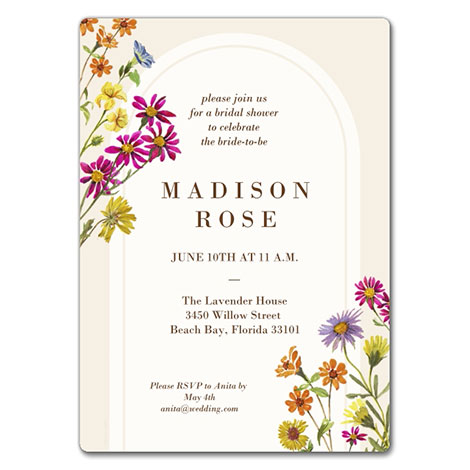
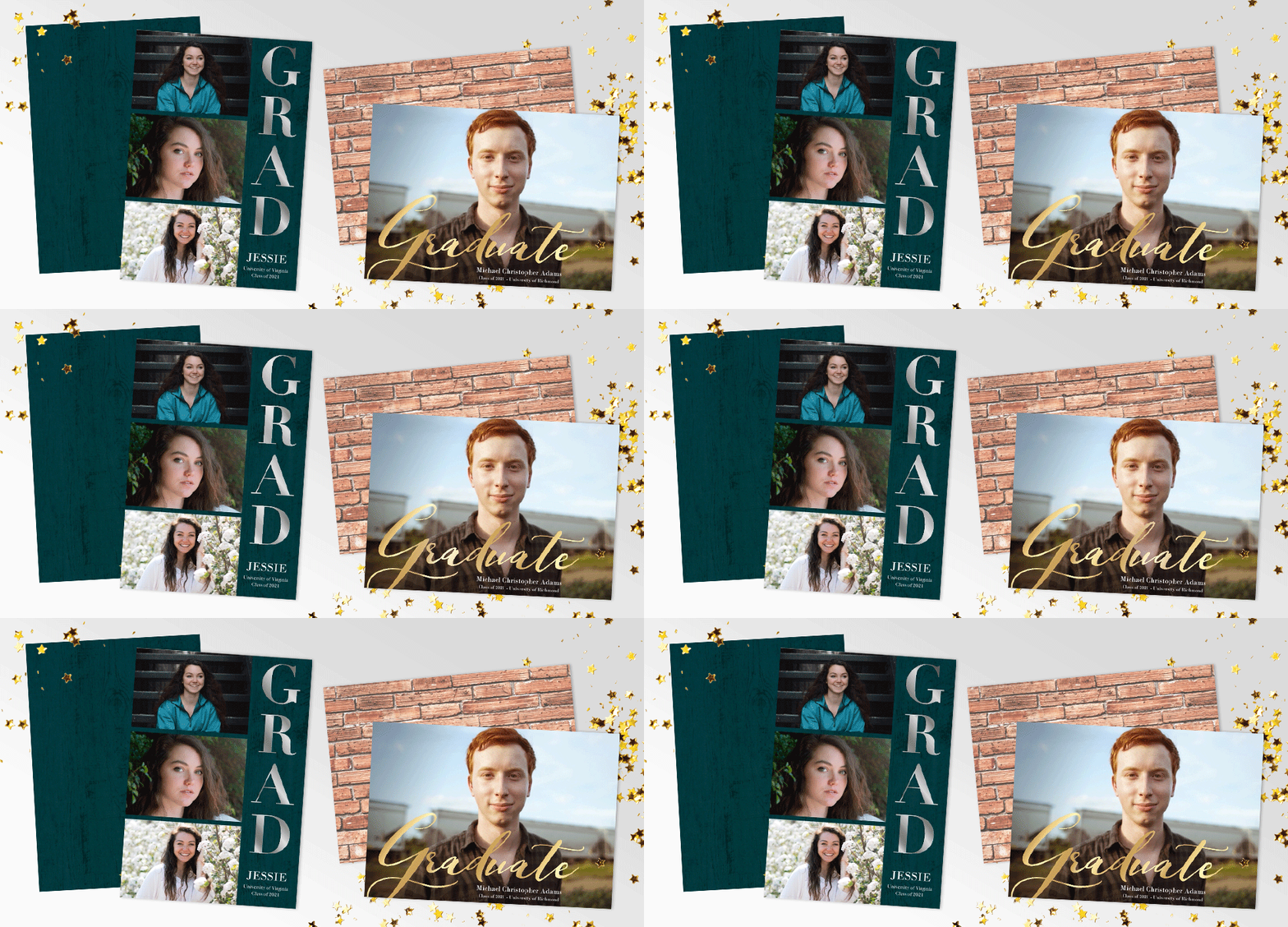
Mark your special occasion in a memorable way with personalized photo invitations and cards from CVS Photo. For every event and every holiday, we have a wide selection of greeting cards and invitations for you to choose from! Celebrate an upcoming event with a special invitation to match the theme or just send a meaningful photo card to show someone you’re thankful. Putting your personal touch on an invitation or card will make the message even more special. Pick a design, customize the wording, add your photos, and share the joy with your personalized design. Feeling creative or have a vision already? Start from scratch and make it your own from start to finish. No matter the celebration, you’ll be able to create all the stationary you’ll need for the whole event – from save-the-dates all the way to thank you cards.
Endless Photo Services
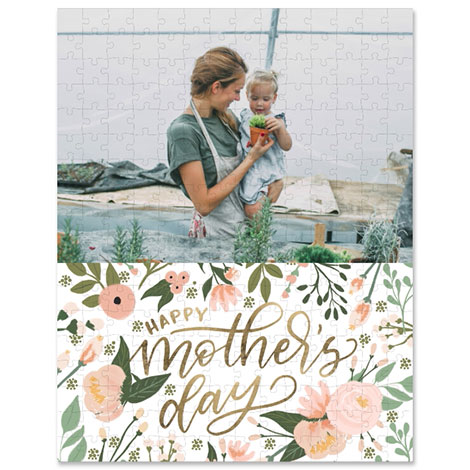
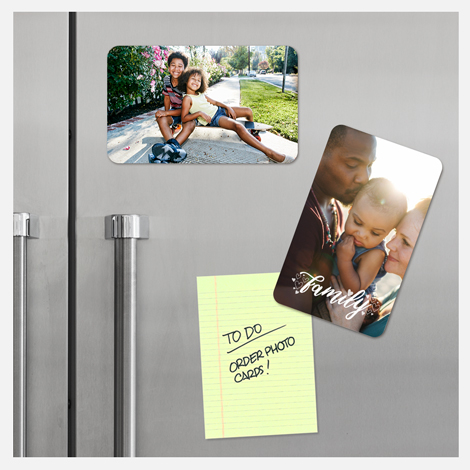
There are so many ways you can incorporate your photos into a gift or for your own enjoyment at CVS Photo. Remind your loved ones they're special with custom photo mugs, photo magnets, custom notebooks, water bottles, and more! We don’t just offer photo prints and photo gifts – we also have services including film developing, so you can bring in your disposable cameras to finally get those photos developed. If you’re planning to go abroad, you can have your passport photo taken in store in just a few minutes and be ready to go. There are so many more photo services at select CVS locations including vhs to dvd transfer and copy & print services! Come in or browse online to find the service you’re looking for.